Last updated 1 Nov 2026
Use Fragrantrix AI Assistant to find ingredients, read formula data and plan changes. Learn how to enable it, ask focused questions and review results before taking action, with prompts you can adapt to your work.
1. Enable AI Assistant in Settings
- Sign in, open your profile picture or initial menu and select Settings.
- Open the AI Assistant tab and its AI Assistant Preferences section.
- Turn on Enable AI Assistant.
- Choose an AI Provider and an available model under Select Model.
- Select Save Preferences and wait for the result.
- Review Usage & Quota. Ask your account administrator to check setup if options or access are unavailable.
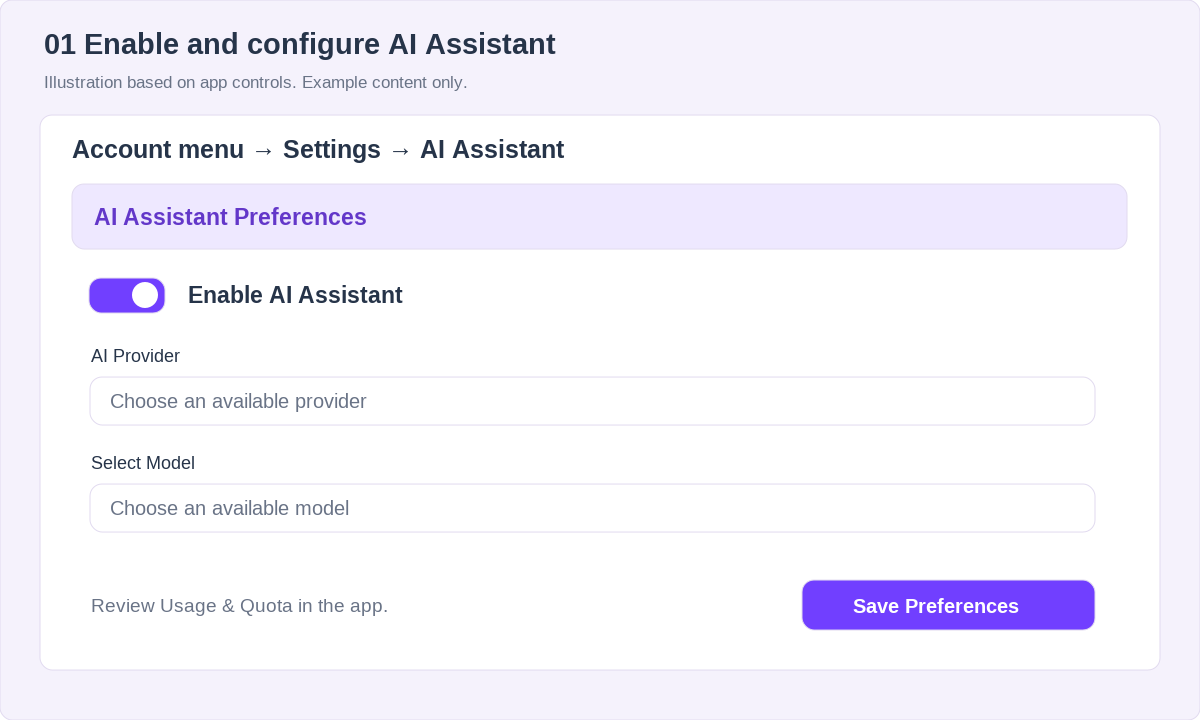
If your team has already configured the assistant, you do not need to change the provider or model before every question. Follow the team’s settings and review account usage conditions before changing them.
2. Open the AI panel
- Open the relevant page, such as Ingredients for ingredient lookup or the specific formula you want to discuss.
- Select Open AI Assistant near the bottom-right corner.
- On first use, review the AI Assistant Privacy Notice, including data that may be sent to the provider. Accept when appropriate for your use of that data, or close the panel if you are not ready.
- Check the page context and formula identity before referring to “this formula.”
- Type a message and use the send button or Enter. Use Shift + Enter for a new line.
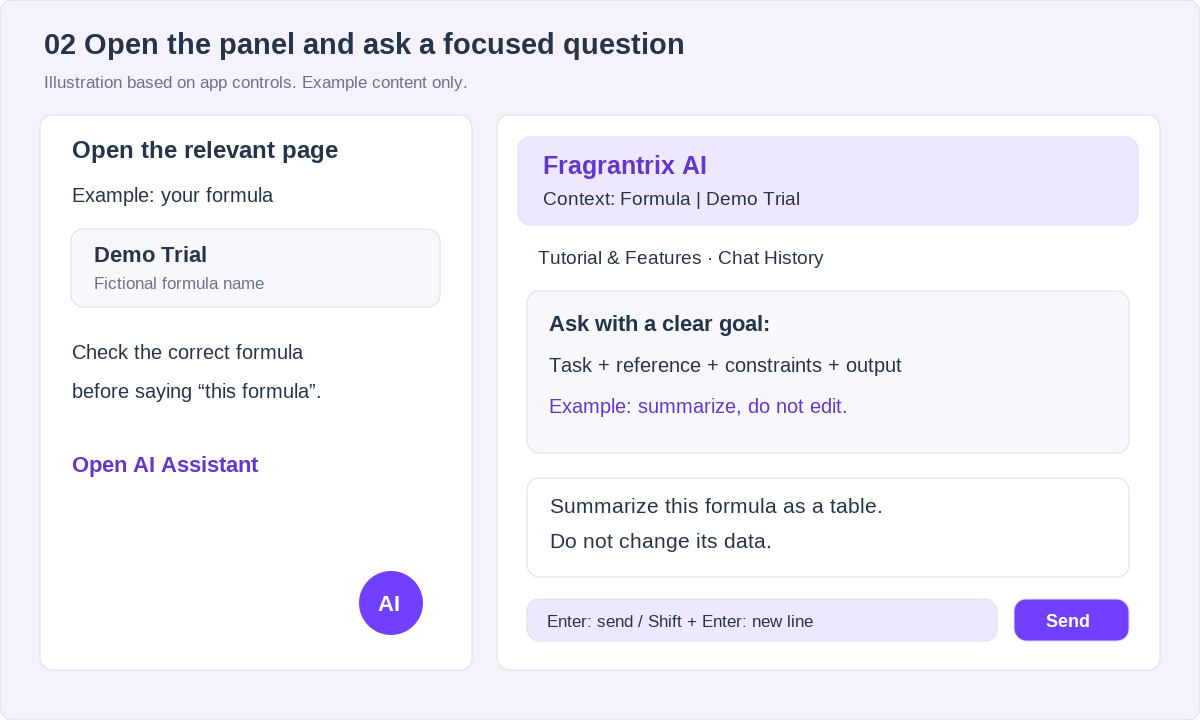
Helpful controls
- Tutorial & Features, shown with a question-mark icon, opens in-app guidance.
- Help starts a question about using the assistant.
- Chat History opens previous conversations. Use New Chat for a fresh topic.
- Quick actions depend on the page. Examples include By Accord / Usage on ingredient pages and Suggest / Alternatives / Balance on formula pages when available.
Some shortcuts prepare a prompt; others present additional choices. Read the resulting text and options before proceeding.
3. Ask questions that match the task
Include the task + reference data + constraints + desired output. Start with one task per message and follow up as needed.
“Please [task] for [formula or ingredient], using [data or conditions]. Show [table or list] and identify missing information before drawing conclusions.”
- Use an ingredient name or CAS instead of vague references such as “that one.”
- For formula work, open the correct formula and include its name or identifier where needed.
- State units such as g or % and the target total. Do not use Quantity, Purity and formula percentage interchangeably.
- Say whether you want read-only analysis or suggestions, or an actual change.
- Specify an output such as “ingredient / quantity / percentage,” and ask the assistant to separate retrieved facts from suggestions.
4. Example questions and commands
Replace bracketed text with real details before sending. These prompts help start a conversation; they do not guarantee a particular result or provide a ready-to-use formula.
Find an ingredient
Search inventory for [ingredient name]. Show the name, CAS and stock data found in the system. If there are multiple matches, list them in a table. Do not add or edit any records.
Check a specific stock record
Check system stock for [ingredient name]. If the name is ambiguous or several records match, ask me before selecting one.
Summarize the open formula
Summarize the open formula as a table of ingredients, quantities, units and percentages, including the total. Use only data you can read from this formula. Do not change anything.
Request development suggestions
For [formula name], suggest ways to increase [target odor character], starting with ingredients in inventory. Separate retrieved facts from suggestions and identify what needs further assessment. Do not edit the formula yet.
Plan a quantity change before execution
In the open formula, I want to increase [ingredient A] from [old amount] g to [new amount] g, retaining a total of [target total] g by reducing [ingredient B]. Check the data and propose the changes first. Do not execute them yet.
Request an edit after reviewing the plan
In [formula name], set [ingredient A] to [new amount] g and [ingredient B] to [new amount] g. Present the details for my review and confirmation before changing the data.
An edit can succeed only when the app supports the action, the required data exists and your account has access. Review any confirmation card as described below.
5. Review answers and confirm changes
Reading information and changing formula data are different tasks. Supported formula-edit actions, such as adding or removing ingredients or changing quantities, have a confirmation step before execution.
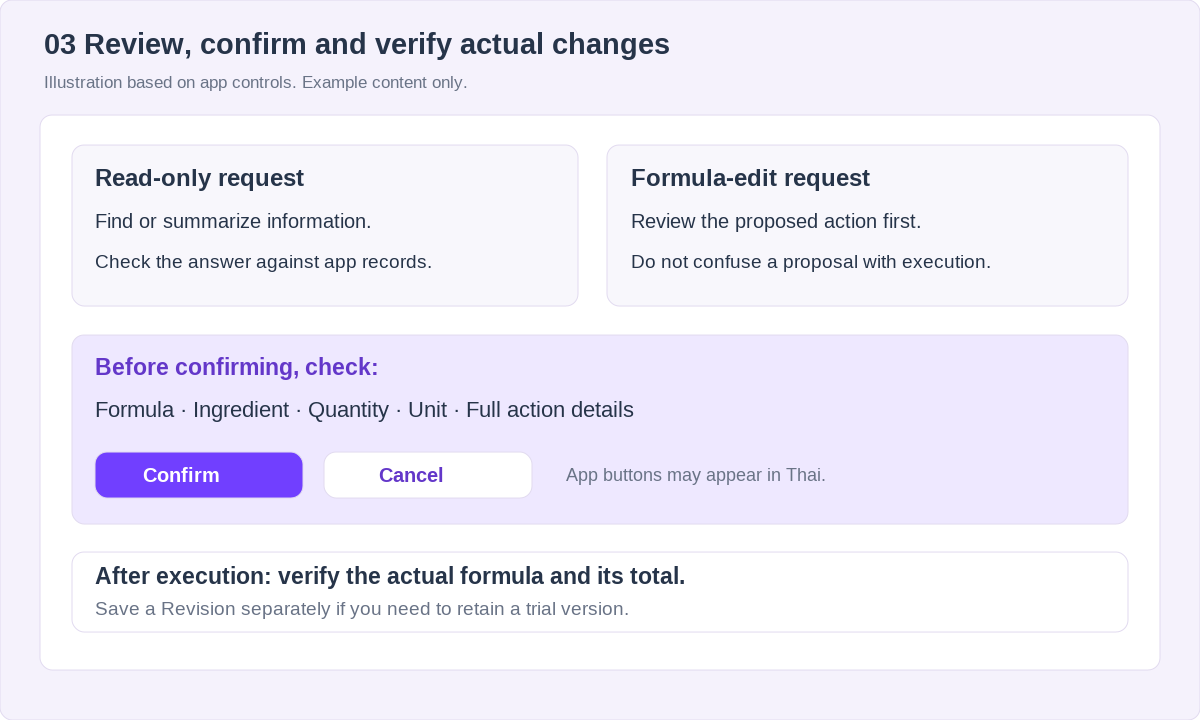
- Check the formula identity and current context.
- Read every ingredient, quantity, unit and detail on the confirmation card, rather than relying only on a narrative summary.
- If anything is wrong, select Cancel and explain the correction in a new message.
- Only when the details are correct and you want the actual change, select Confirm and wait for the app’s result. The app may show these buttons in Thai.
- Verify the actual formula, including Quantity, total and percentages.
- To retain the trial as a version, review and save a Revision using the formula management guide. A chat message is not a saved formula revision.
AI answers can be incomplete or mistaken. Verify actual app records and your team’s references, especially before changing a formula or using the result in further work.
If you see AI access locked, check formula restrictions and permissions with the administrator. Formula AI access is separate from enabling AI in Settings.
Frequently asked questions
What if the app says AI Assistant is not enabled?
Check Settings → AI Assistant, enable it, select an available model and save preferences. Ask the administrator if you lack access.
Why can I open the panel but not send a message?
Check the privacy notice, enter a message and wait for any previous request to finish. If a quota or usage-limit message appears, review Usage & Quota and contact the administrator.
Why does the answer refer to the wrong formula?
Check the open page and formula identity. Specify the name or identifier. When changing tasks, open the correct page and start New Chat where appropriate.
Why can the assistant not find an ingredient?
Check the name or CAS in Ingredients first. An ingredient must exist in inventory before it can be added to a formula. Resolve multiple similar matches before requesting an edit.
I confirmed, but the formula did not change. What next?
Read the result or error and verify the actual formula before repeating the command. Check permissions, lock state and ingredient records. Ask the administrator if the issue persists.
Can I ask in English?
You can write prompts in English and specify the response language. Some app controls may still appear in the app’s own interface language.