Last updated 1 Nov 2026
Create your first formula, add ingredients, adjust proportions and save revisions for comparison. This guide uses a fragrance workspace and fictional examples rather than a real customer formula.
Before you start
Make sure the ingredients you need already exist in Ingredients. Follow the ingredient management guide if you need to add them first. Check their purity, dilutant and the measurement unit your team uses.
Open STUDIO and choose the appropriate formula workspace. This guide uses Fragrance Formulas. Some fields differ in the Flavor workspace.
1. Create a formula and add ingredients
1.1 Create the formula record
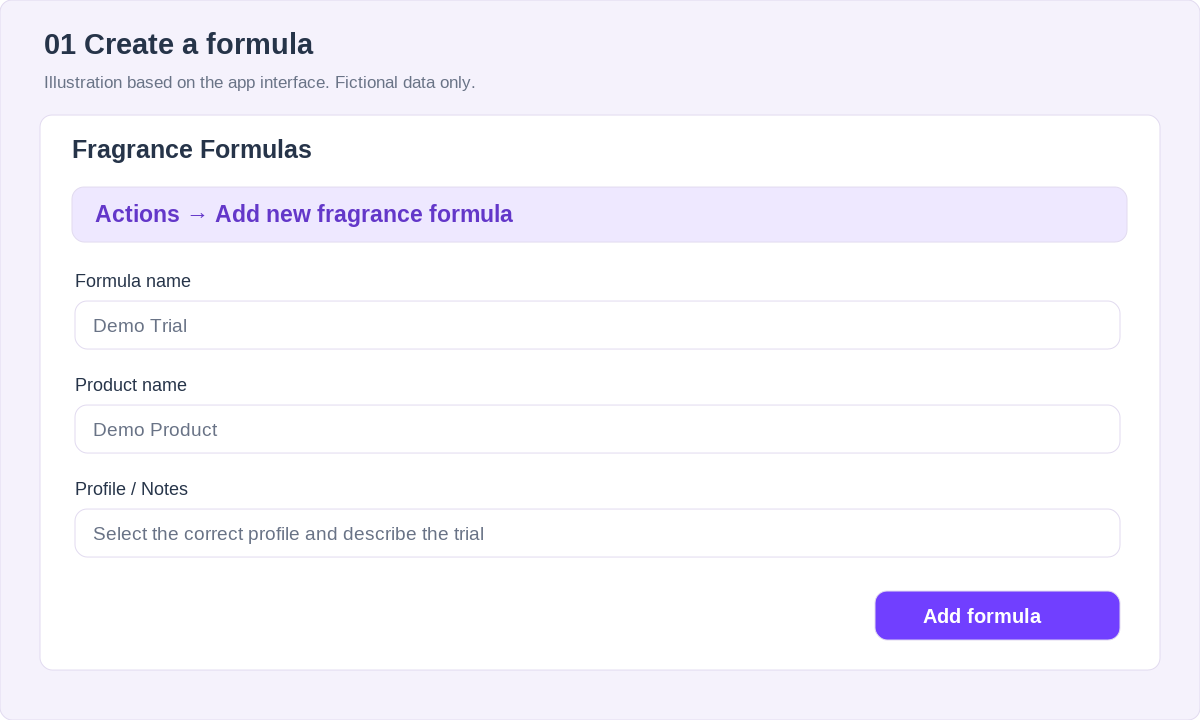
- On Fragrance Formulas, select Actions → Add new fragrance formula.
- Enter a clear Formula name and the associated Product name.
- Select Profile and the other details required by the form, using the correct category and product context.
- Add Notes describing the purpose of the trial, then select Add formula.
- Wait for confirmation and open the new formula from the list or the link provided.
1.2 Add ingredients
- On the Formula tab, select an ingredient.
- Check Purity and Select Dilutant against the material you use.
- Enter Quantity in the displayed unit, such as g, then select Add.
- Repeat for the remaining ingredients and verify each row in the table.
Purity describes the concentration of the material being used. Its proportion in the formula depends on Quantity relative to the total. Do not enter the formula percentage in the Purity field.
2. Adjust quantities and proportions
- Check that the formula is editable. If it is locked, follow your team’s permissions and workflow first.
- Select the ingredient’s Quantity value.
- Enter the new quantity in the displayed unit and confirm it using the editor’s save control. The editor may be inline or in a dialog, depending on app settings.
- Review the recalculated total and percentages, including rows you did not edit.
Keep the total consistent when that is your intention
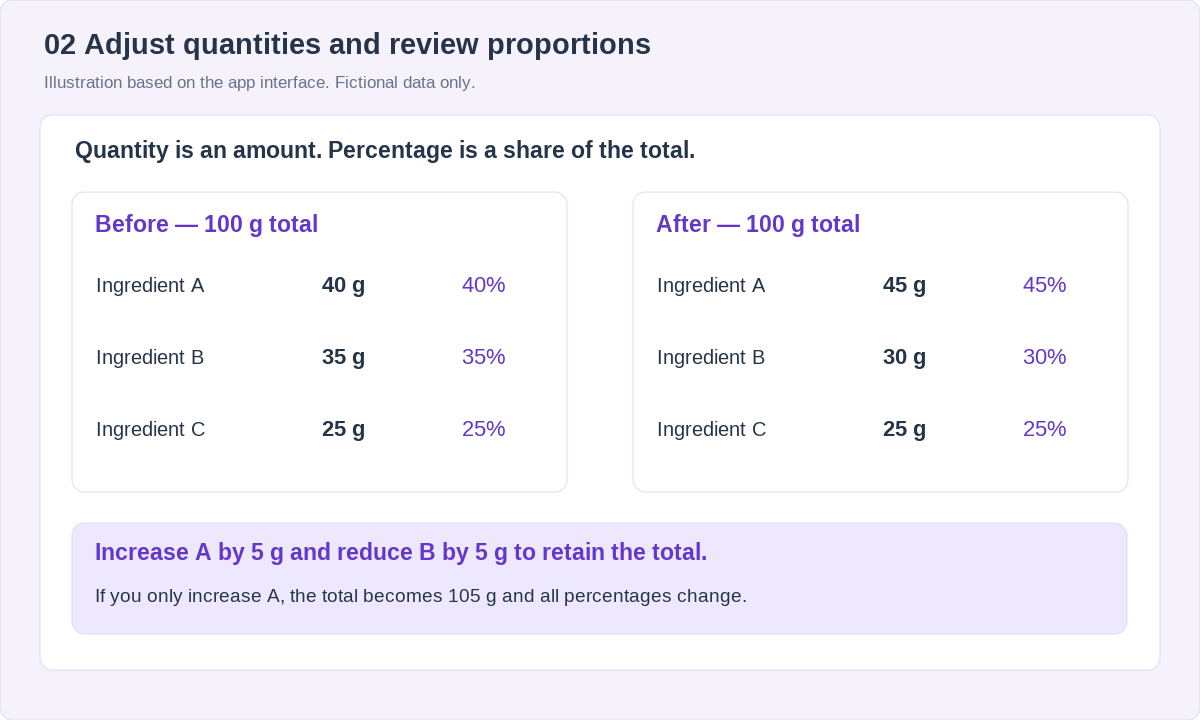
For a fictional 100 g formula with A = 40 g, B = 35 g and C = 25 g, increasing A to 45 g and reducing B to 30 g keeps the total at 100 g. The new shares are 45%, 30% and 25%.
If you only increase A, the total becomes 105 g and all percentages change relative to that total. A formula does not have to weigh 100 g for its percentages to total 100%.
Adjust solvent and scaling
When adding an ingredient, Adjust solvent deducts the added quantity from the selected formula solvent. Check the selected solvent and its available quantity before confirming.
Scaling changes the overall size while keeping the ratios, for example from 100 g to 200 g. When the app shows a Scaled state with unchanged ratios, a new revision is not needed solely because the size changed. Changing proportions is a different operation.
3. Save versions using Revisions
Working draft versus saved revision
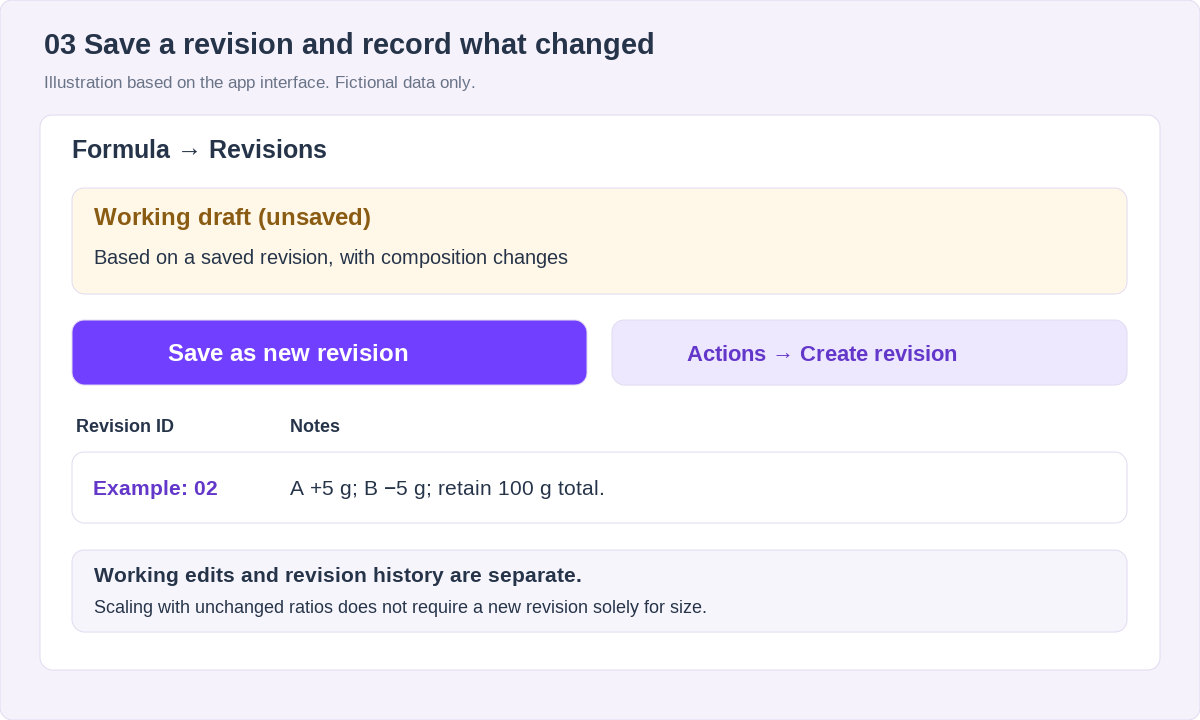
Successful edits can be stored in the current working formula without creating a new version in revision history. Read the Working draft and Saved revision states to see whether the current composition matches a saved version.
- Open the formula’s Revisions tab.
- For a changed draft, select Save as new revision. You can also use Actions → Create revision when available.
- Wait for confirmation, then verify the new entry under Revision ID and the updated current state.
- Select the text or edit icon in Notes, enter the reason for the change, and save the dialog.
- Use a specific note, such as “Increase A by 5 g and reduce B by 5 g; retain 100 g total.”
Use Compare with base revision, when available, to review a draft against its base before saving another version.
It removes the draft changes. Save a revision first if you need to retain the current trial.
Final checklist
- Correct formula name and workspace.
- Correct ingredients, purity, dilutant and units.
- Quantities, total and percentages reviewed.
- A saved revision and meaningful Notes for the trial you need to retain.
- Successful save confirmed in the Revisions list.
Frequently asked questions
Why is the new formula empty?
Add formula creates the record. Select ingredients, enter Quantity and use Add in the formula editor to build its composition.
Why does the formula still show Working draft?
Editing the working formula and creating a saved revision are separate steps. Open Revisions and save the version you want to keep.
Does scaling require a new revision?
Not solely for a size change when ratios remain unchanged and the app shows Scaled. If proportions change, review the draft state and save a revision as needed.
Why can I not edit Quantity?
Check the formula’s lock state and your permissions. The editing interface can vary by app settings. Ask your team administrator if it remains unavailable.