Last updated 1 Nov 2026
Describe each ingredient’s accord character in Fragrantrix: select Main Accords, distribute their weights, set Top / Heart / Base impact and review the result before saving. All examples in this guide are fictional.
Before you start: choose the correct ingredient
Prepare the odor description and assessment your team uses as a shared reference. If the material differs by concentration or solvent, make sure you are editing the correct ingredient record.
- Open Ingredients and search by name or CAS.
- Select the ingredient name and check its General details.
- Open Note Impact. This tab contains Main Accords, Odor Intensity, the Weight / Top / Heart / Base matrix and Accord Fingerprint.
A new ingredient must be saved in General before additional tabs are available. See the ingredient management guide.
It does not set its quantity in a formula, its purity or a permitted usage limit.
1. Select the ingredient’s Main Accords
- Select the Main Accords field and type part of an accord name.
- Choose a name from the suggestions, such as Floral, Woody or Citrus if available in your account.
- You can select more than one accord where supported by the material assessment. Do not add groups simply to increase their number.
- Check the tags. Each selected accord has a row for its Weight and phase impacts.
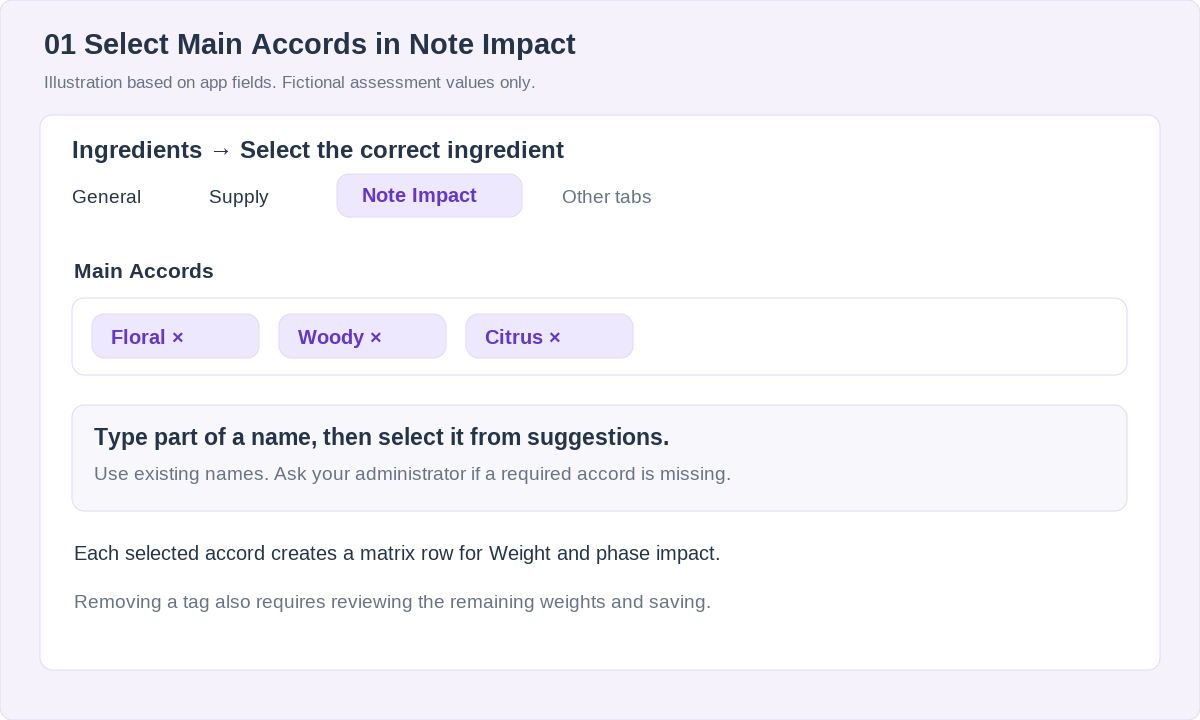
This field accepts existing accord names, rather than creating arbitrary new names. Check spelling or ask the administrator to review the accord list if a name is missing.
To correct a selection, remove its tag and review the remaining weights. Adding or removing tags still requires Save.
2. Make weights total 100
Weight distributes relative weight among the selected accords for this ingredient. Enter whole numbers from 0 to 100. When accords are selected, Total Weight must show 100/100 before saving.
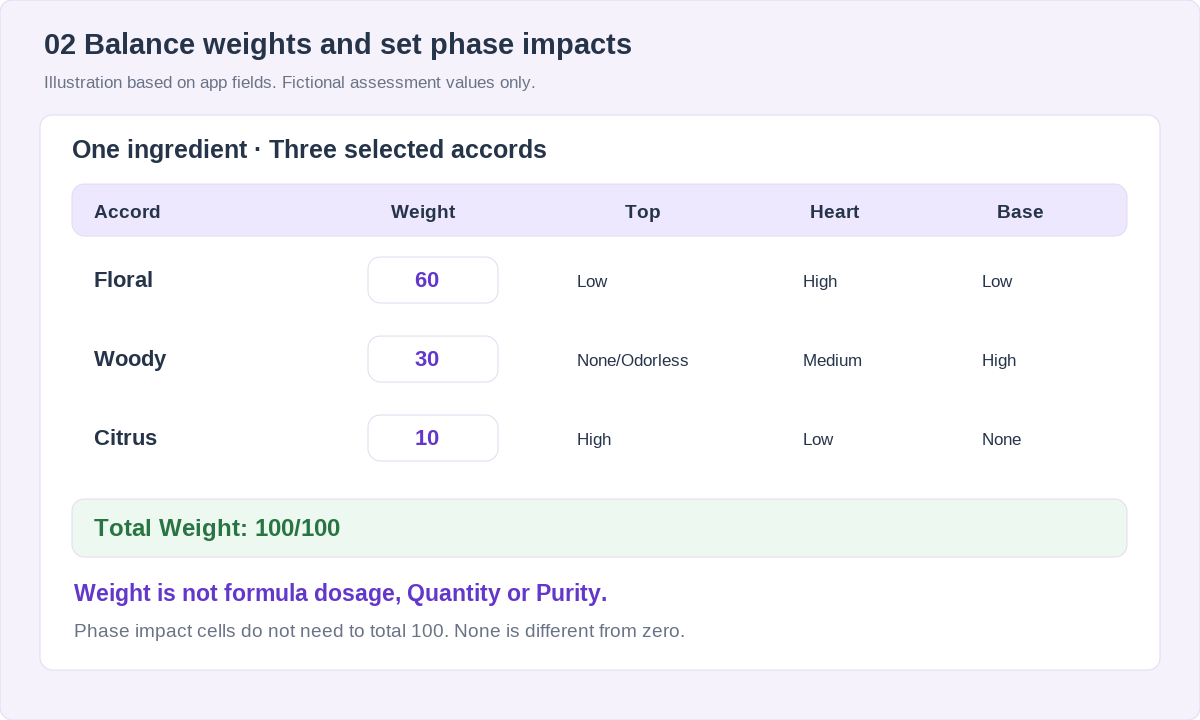
- For a single selected accord, use Weight = 100 if that is the only group you intend to use.
- A fictional three-accord example is Floral = 60, Woody = 30 and Citrus = 10. Use your team’s assessment for actual records.
- Increasing Floral from 60 to 70 without changing the others produces 110. Rebalance the other weights to total 100.
- A newly added accord may start at Weight = 0. Review the distribution after adding it.
A zero weight is not the same as removing a tag. Review whether to remove an unwanted group or retain it under your team’s conventions.
Floral Weight = 60 does not mean you should use this ingredient at 60% in a formula. It is also not 60% purity. Formula quantities and proportions are managed separately.
3. Set each accord’s phase impact
For each accord row, select its assessed impact under Top, Heart and Base. Apply a consistent assessment method across your team.
| Option | Meaning in the settings |
|---|---|
| None | No value assigned to that cell. It does not explicitly set zero impact. |
| None/Odorless | Explicitly assigns 0 to that accord and phase according to the assessment. |
| Low | Low level; the app option uses 10. |
| Medium | Medium level; the app option uses 50. |
| High | High level; the app option uses 100. |
The Top / Heart / Base values do not need to total 100. They are separate from Weight. Selecting None/Odorless in one cell does not establish that the entire ingredient is odorless.
Odor Intensity is separate
Odor Intensity is an ingredient-level intensity value, separate from each accord’s Weight. If entered, use a value from 0 to 100 based on the team’s assessment. Leaving it blank is not the same as entering 0; the system may use a default in calculations.
Do not set everything to High or copy example numbers just to produce a chart. Where data has not been assessed, retain an appropriate unset state and have the team review it before use.
4. Review Accord Fingerprint and save
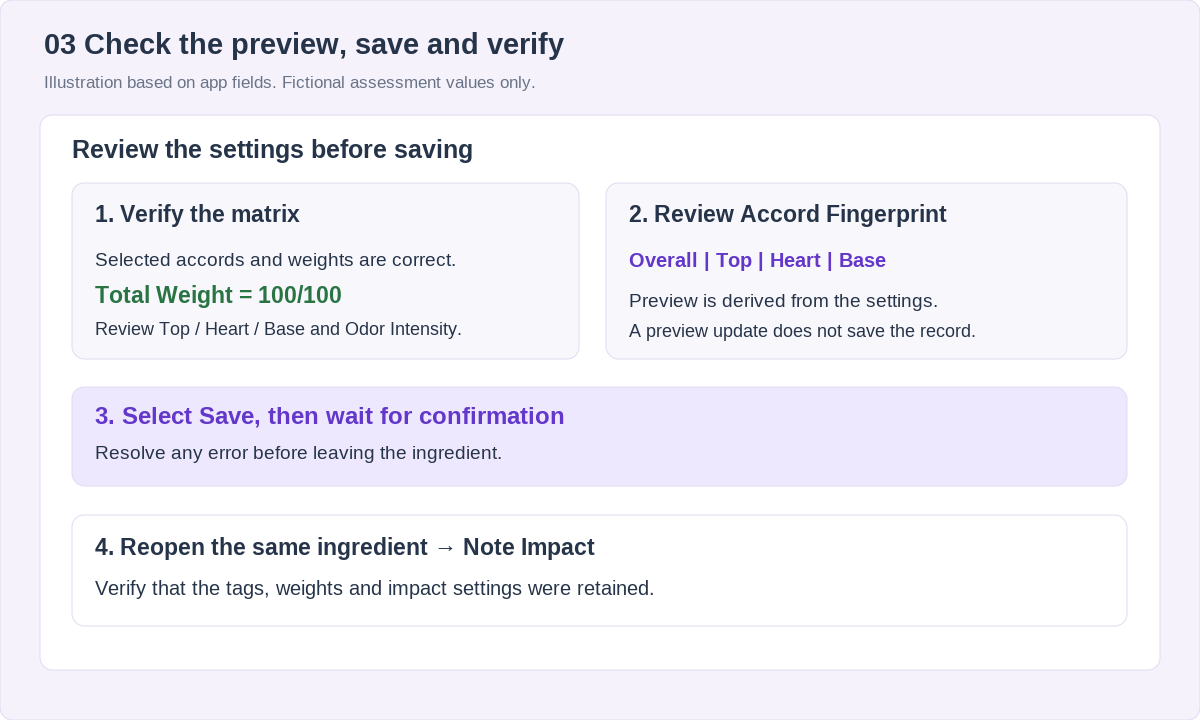
- Check the ingredient identity and selected Main Accords.
- Confirm Total Weight = 100/100 and review phase impacts and Odor Intensity.
- Review Accord Fingerprint, switching between Overall, Top, Heart and Base.
- Select Save and wait for confirmation. Resolve any reported error.
- Reopen the same ingredient and Note Impact tab. Confirm the tags, weights and settings were retained.
The fingerprint can update while you edit. You still need Save. Chart values may also differ from raw Weight values because phase impact settings contribute to the calculation.
After changing ingredient data, review accord results in related formulas. Editing this tab does not itself create a formula revision.
Frequently asked questions
Why is Save disabled?
When accords are selected, their weights must total exactly 100. Check every row, especially after adding or removing tags.
Can an ingredient have multiple Main Accords?
Yes. Choose existing accord names and distribute the weights to total 100 using your ingredient assessment.
Why does a new name not become a tag?
Main Accords accepts existing names from suggestions. Ask the administrator to review the list if the name you need is unavailable.
Why is the fingerprint blank or missing a phase?
Check the selected accords, weights and phase settings, particularly cells left as None or assigned 0. If a loading error appears, reopen the tab and verify whether the save succeeded.
Why is Note Impact missing?
Open an already-saved ingredient instead of an unsaved new record. If the tab is still unavailable, ask the administrator to check the app version and your access.
What if the app says Accord matrix migration has not been applied?
Ask the system administrator to check feature readiness. Do not create duplicate ingredients or change unrelated settings to resolve this message.