Last updated 1 Nov 2026
Prepare ingredient records before using them in a formula. Learn how to create ingredients, add or update supplier prices, and find information in Fragrantrix.
Before you start
Open Ingredients or find it under RESOURCE. Search for the name or CAS first to avoid duplicate records. Prepare the material’s identifiers, physical state, concentration and solvent, plus supplier, price, pack size and unit.
The ingredient holds its identity and properties. Each supplier record holds a price, size and unit. One ingredient can have multiple supplier records.
1. Create an ingredient
- On Ingredients, select Actions → Create new ingredient.
- In Add ingredient, complete the General tab.
- Enter Name, which is required. Add IUPAC, INCI, CAS and EINECS using the correct supplier documentation.
- Check Purity and Solvent. Do not assume the default 100% is correct.
- Select the correct Physical State: Liquid or Solid. Add Profile, Type, Olfactive family, Odor and Notes as appropriate.
- Select Save, wait for confirmation and resolve any error. Open the saved record and verify it appears in the Ingredients list.
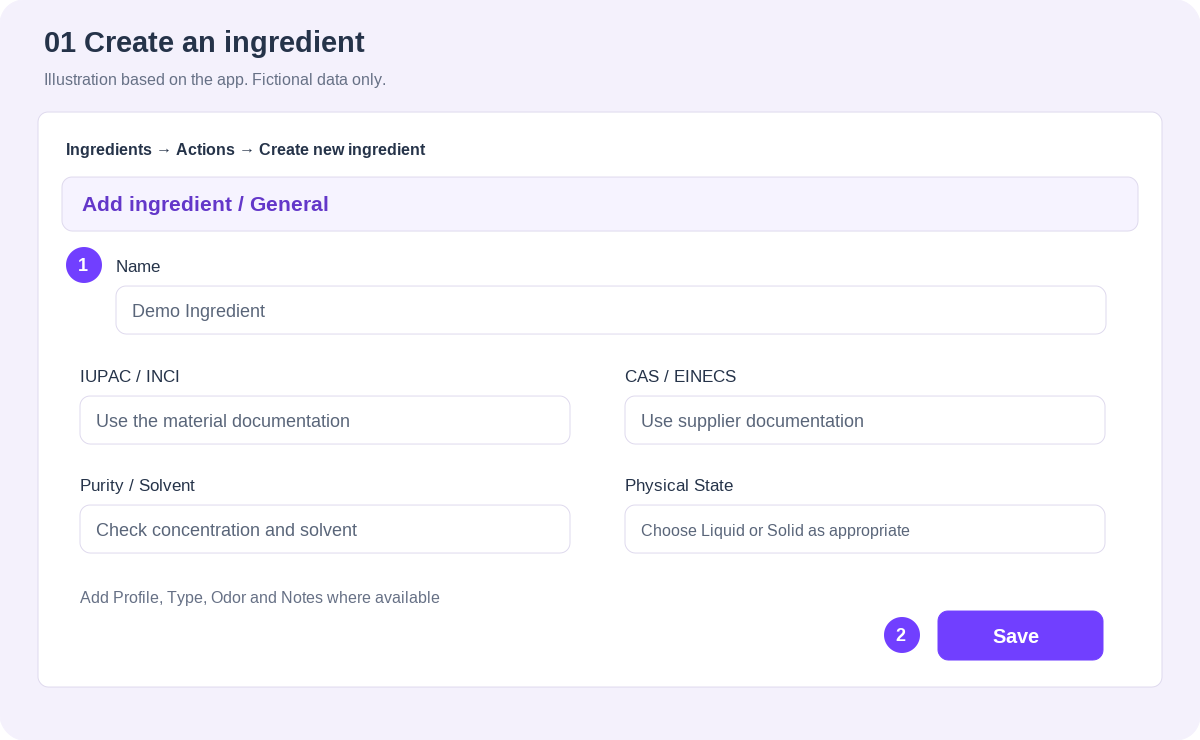
Use the correct fields for IUPAC and INCI; they are different identifiers. For mixtures, consult the material documentation and form guidance. Do not guess unknown identifiers or concentration values.
2. Add suppliers and edit prices
Open the saved ingredient and select Supply. This tab contains the Suppliers section. A new ingredient must be saved before these additional tabs become available.
Add a supplier record
- In Suppliers, select Actions → Add new.
- Select the supplier under Name. If it is not listed, ask the administrator to prepare the supplier record.
- Complete URL, Price, Size and other required fields.
- Check Measurement Unit, such as g or ml, and the displayed currency.
- Add Manufacturer, Batch or SKU details where available, then select Add. Verify the new row.
Edit an existing price
- Find the correct supplier row and check its size and unit against your quotation.
- Select the Price value, enter a number and use ✓ to save or × to cancel.
- Verify the updated value and resolve any error.
- If the pack size also changed, update Size and Measurement Unit consistently.
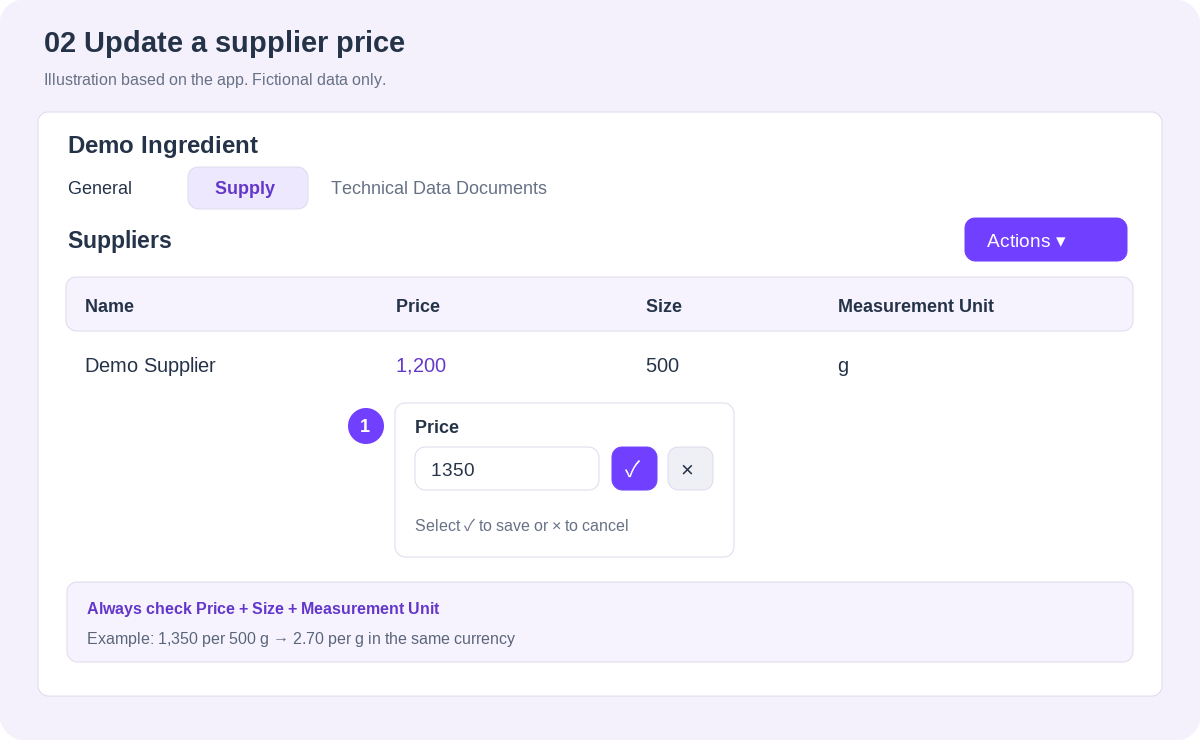
For example, 1,350 per 500 g equals 2.70 per g in the same currency. Do not enter 2.70 as Price while retaining Size = 500 g. Do not treat g and ml as equivalent.
Only the selected supplier row is changed. Review relevant formula costs after updating prices. If Price cannot be edited or Add new is missing, ask your administrator to check permissions.
3. Search and open records
Quick search
- Return to Ingredients and use the search box above the table, with the hint Name, CAS, EINECS, IUPAC, odor...
- Start with part of the name or a known CAS and wait for the results.
- Check the name, identifiers and description, then select the name to open the record.
- Clear the search text and any advanced filters to see the full list again.
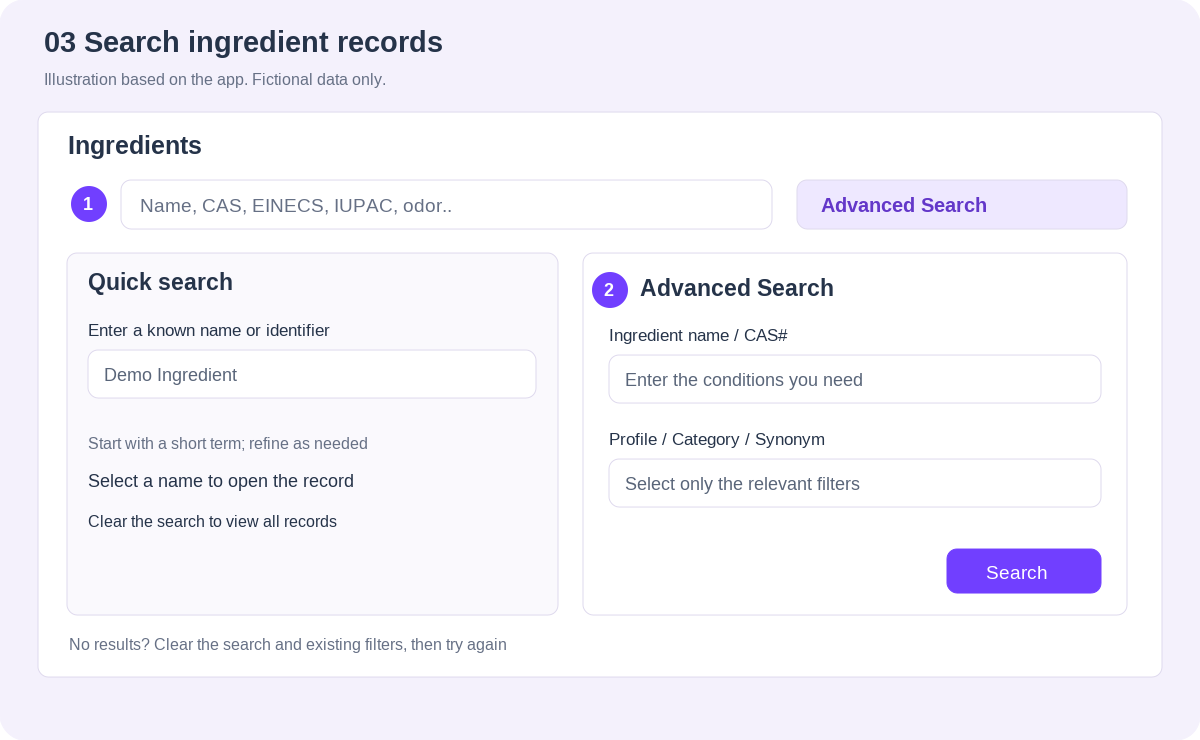
Advanced Search
- Select Advanced Search.
- Enter only the conditions you need: Ingredient name, CAS#, EINECS, Synonym or Odor. Select Profile or Category to narrow the group.
- Select Search. If Retain window after search is enabled, close the search dialog to view results.
- If results are too narrow, clear unnecessary conditions or remove filter badges with ×, then search again.
Within an ingredient, use General for identity and properties, Supply → Suppliers for prices, Technical Data for technical details, Documents for saved files, Synonyms for alternative names and Where used? for formula usage. Some tabs may have no data yet.
Final checklist
- No duplicate record.
- Identifiers agree with the material documentation.
- Purity, solvent and physical state checked.
- Supplier price, size and unit are consistent.
- Reopening the record shows the saved values.
Frequently asked questions
Why is the saved ingredient missing from the list?
Check for a success message, clear search text and filters, search the saved name, and refresh the list before creating a duplicate.
Why is Supply missing?
An unsaved ingredient only shows General. Save it successfully and open the saved record.
Is Price per gram or per pack?
Read Price together with Size and Measurement Unit, such as 1,350 per 500 g. Use your actual purchase data.
Why does search return no results?
Try a shorter name, CAS or Synonym. Check spelling and remove advanced filters.
Why can I not edit a price?
Check that you are in Supply and the correct supplier row, then ask your administrator to verify permissions.